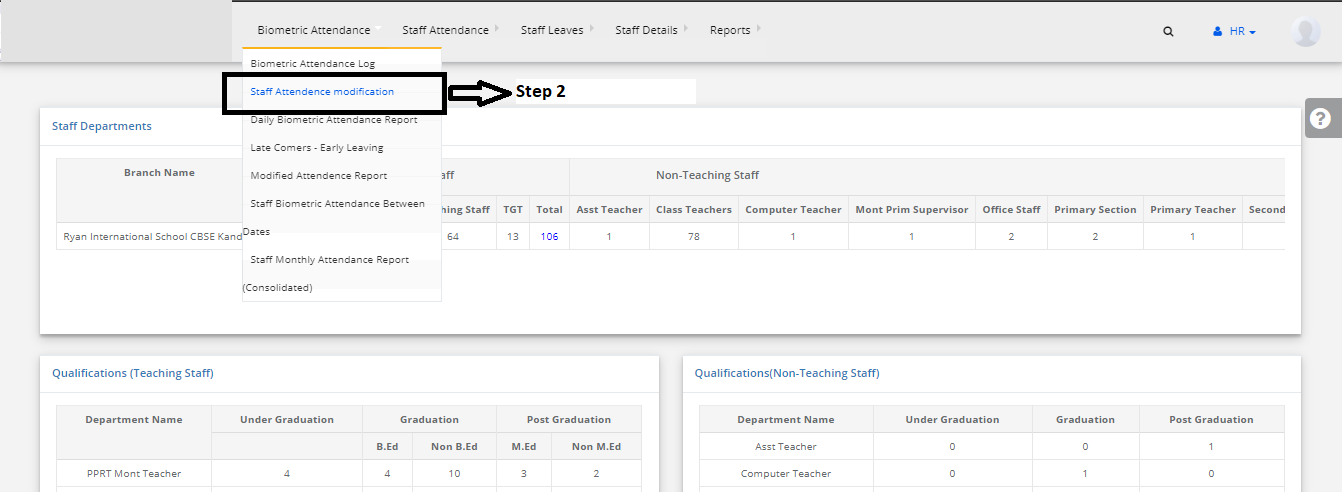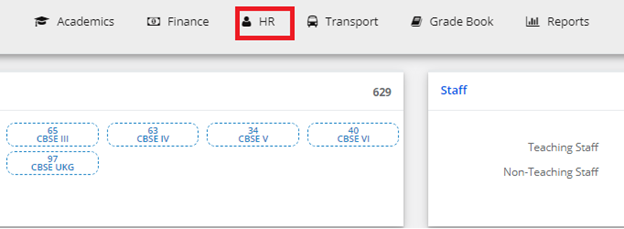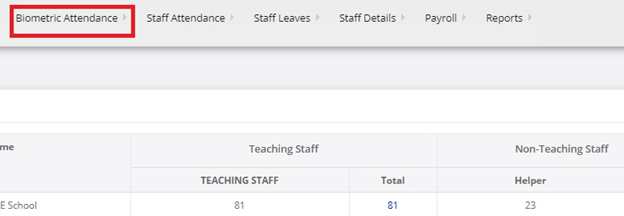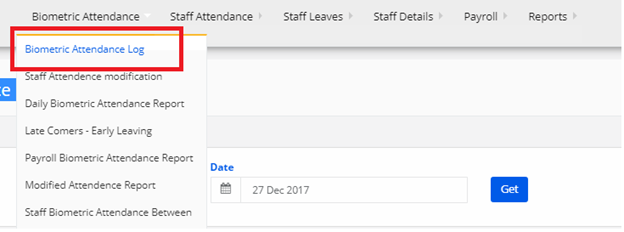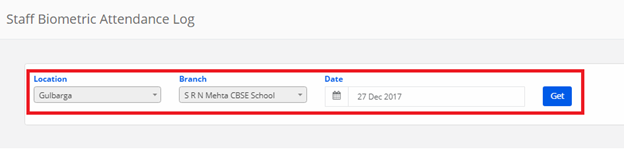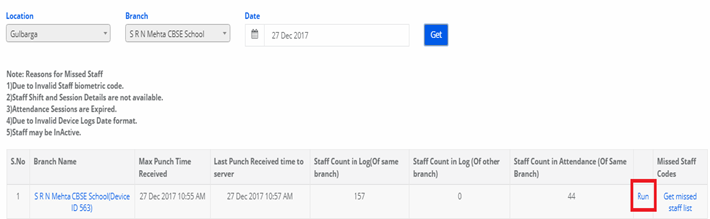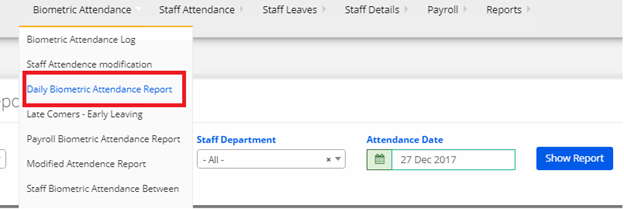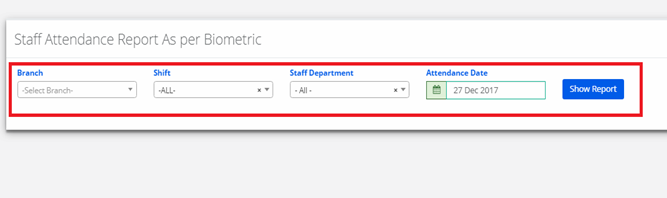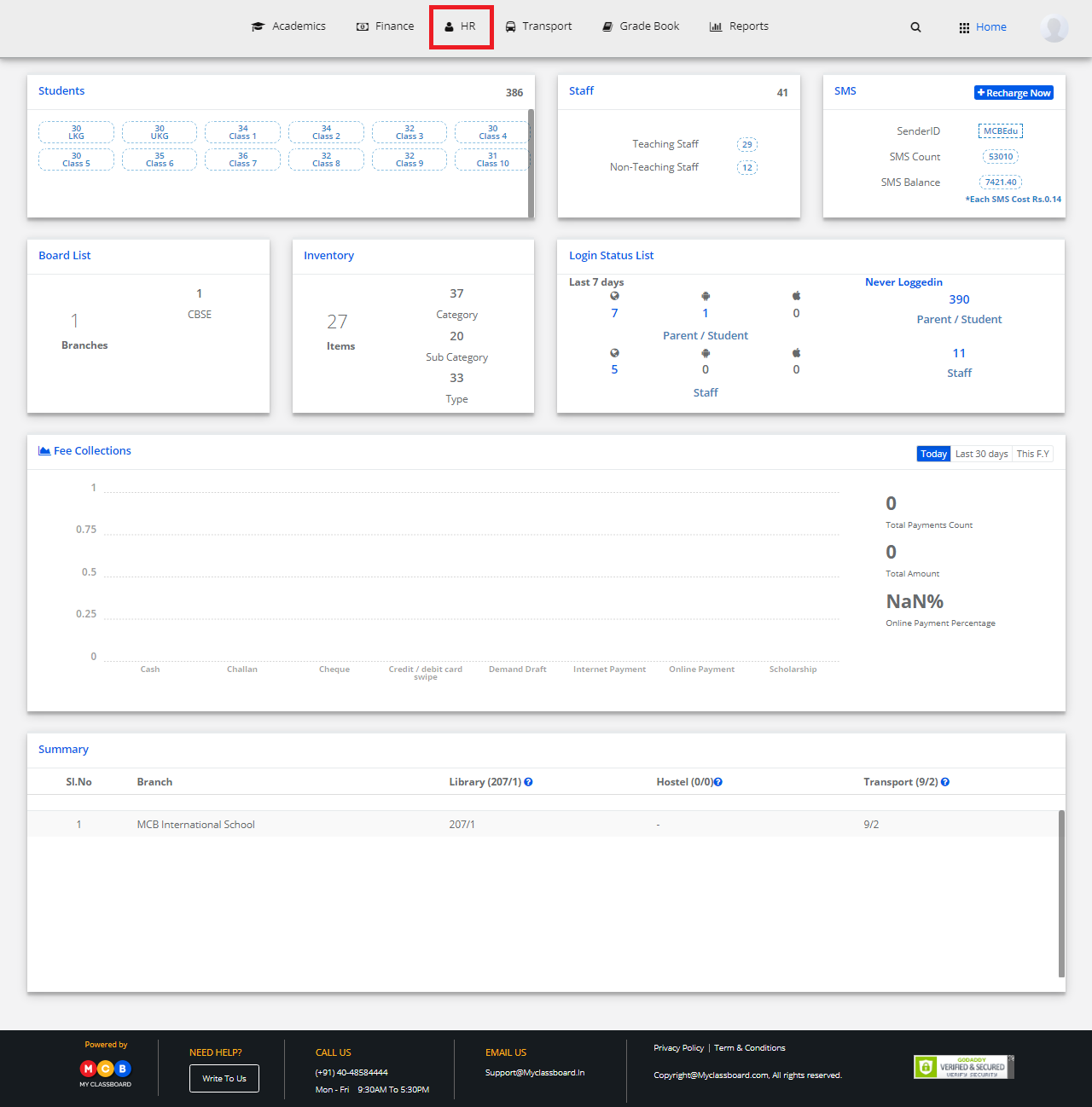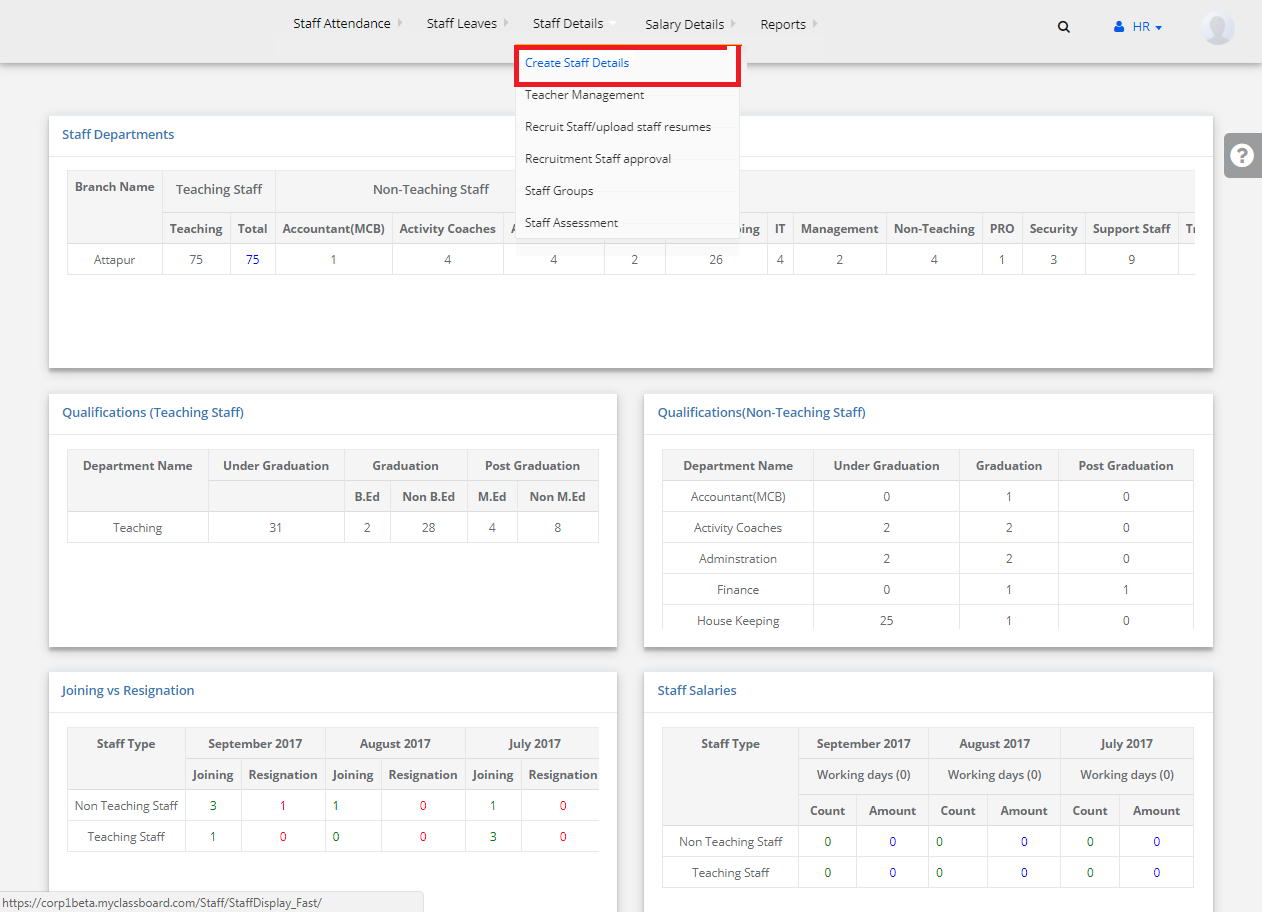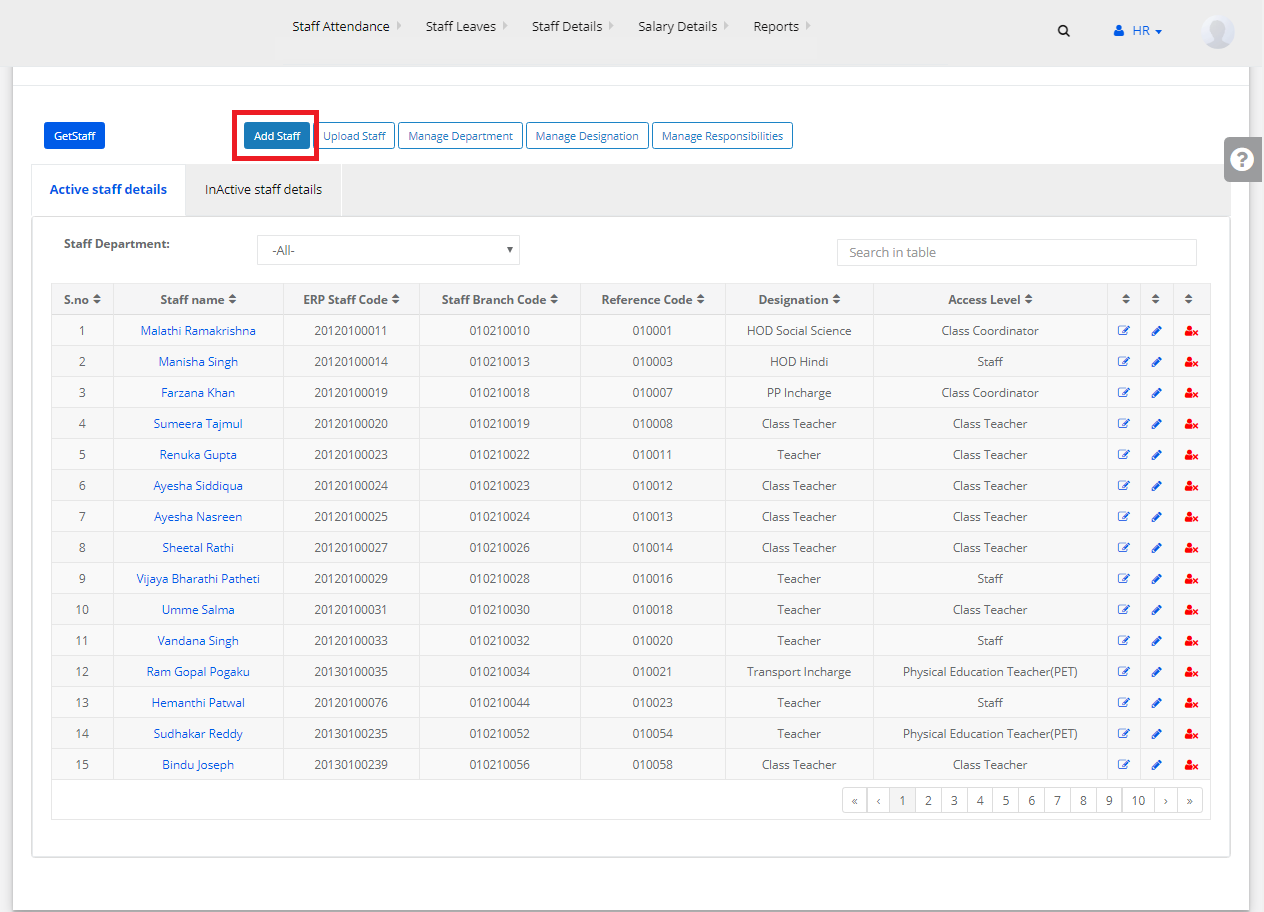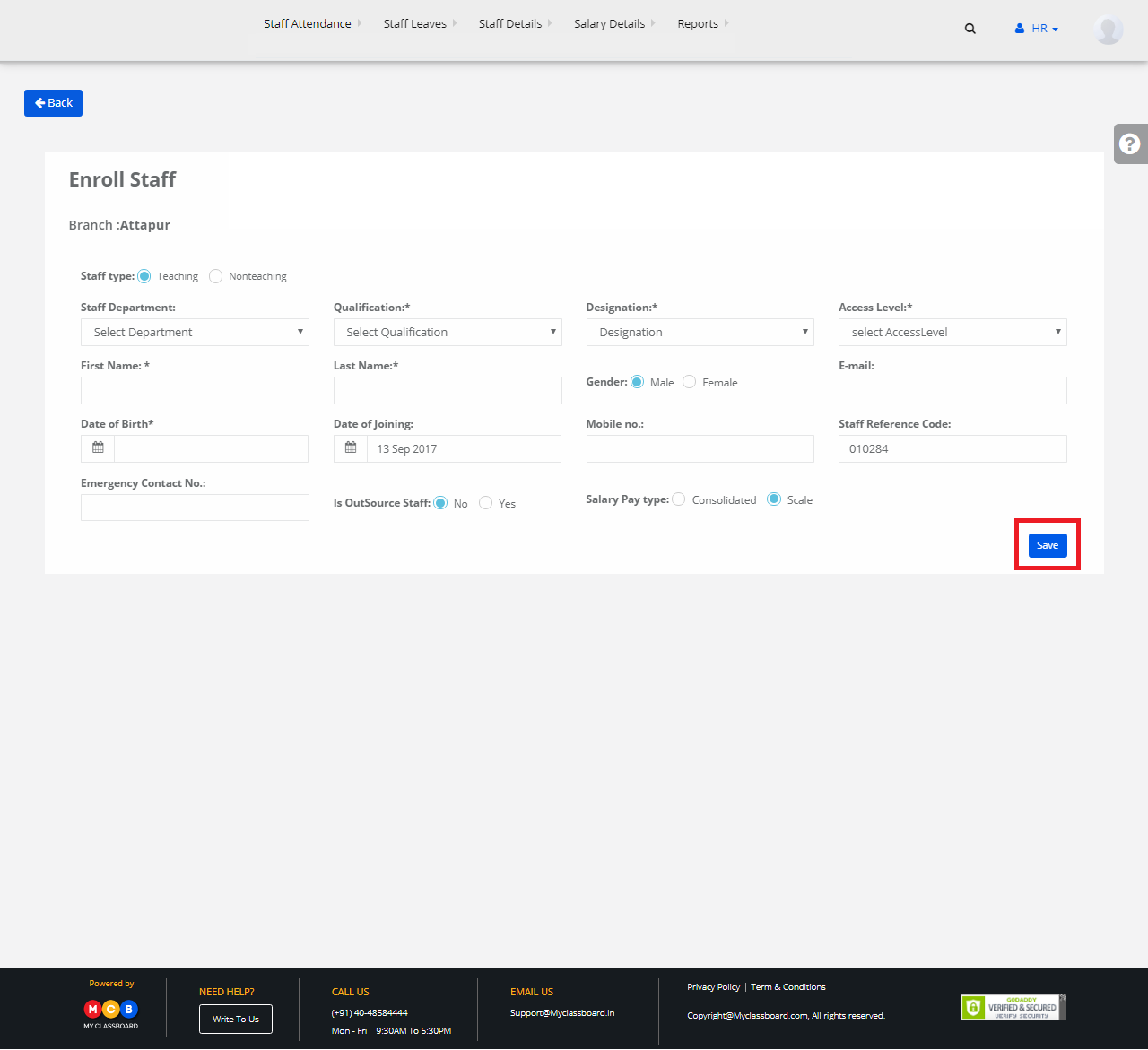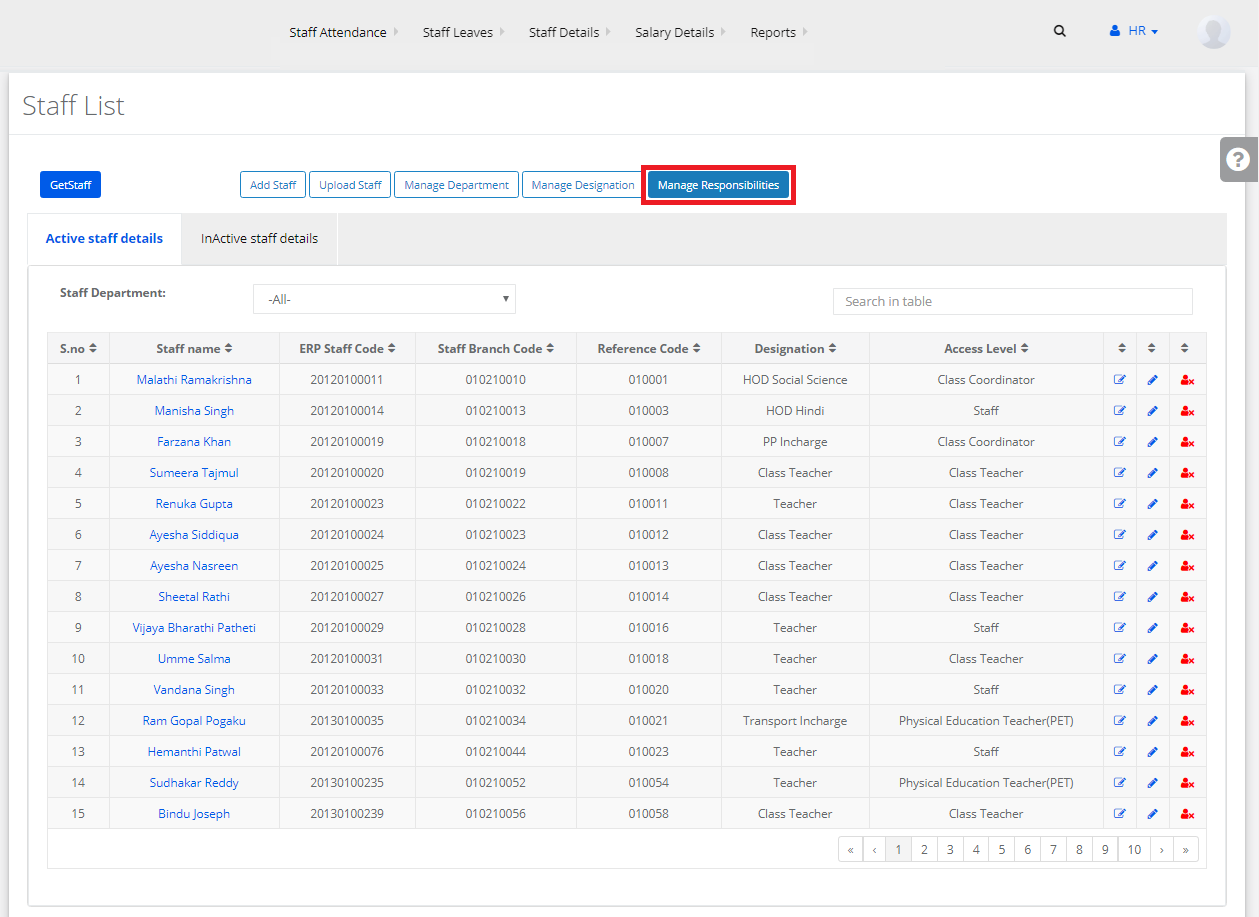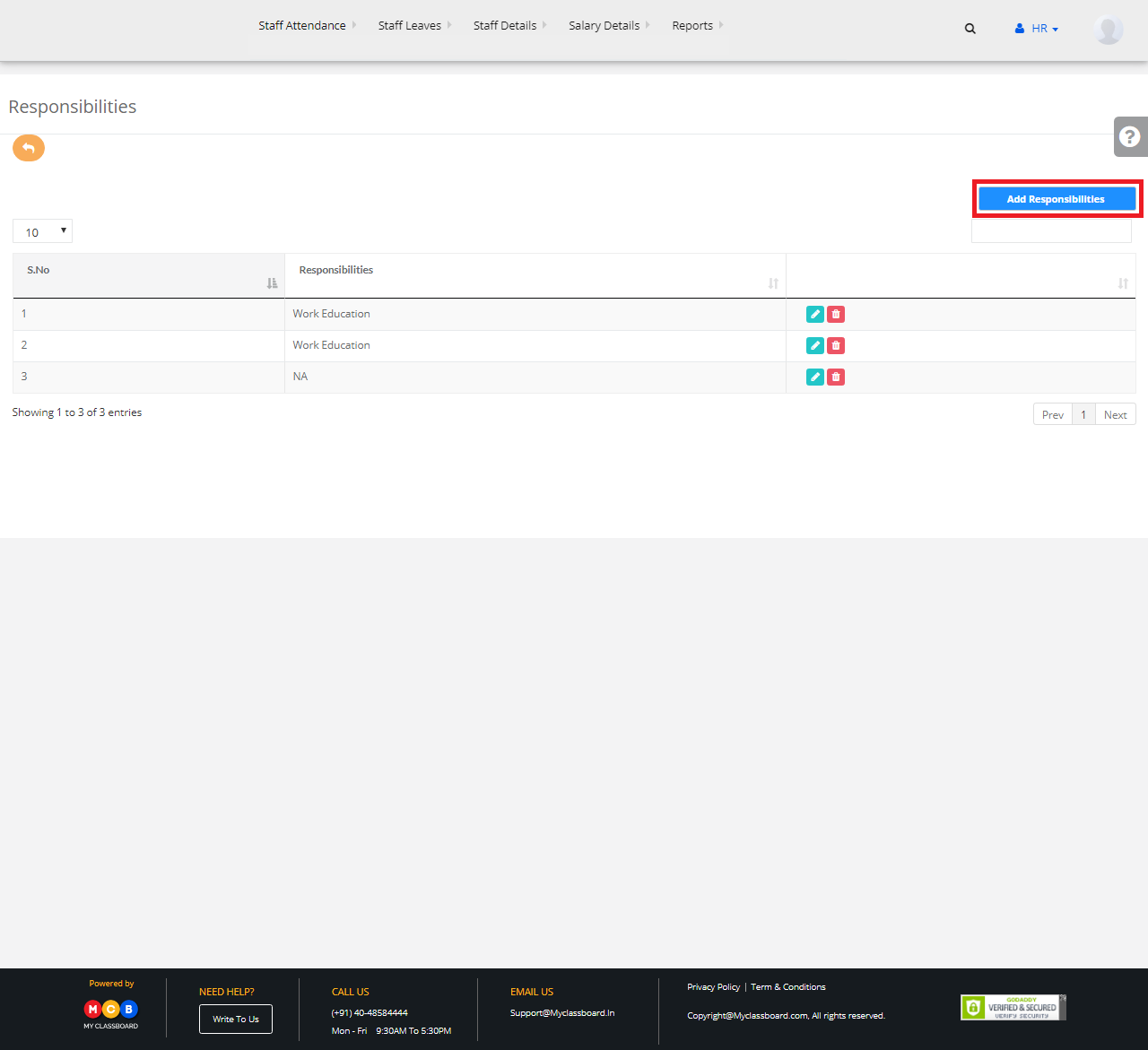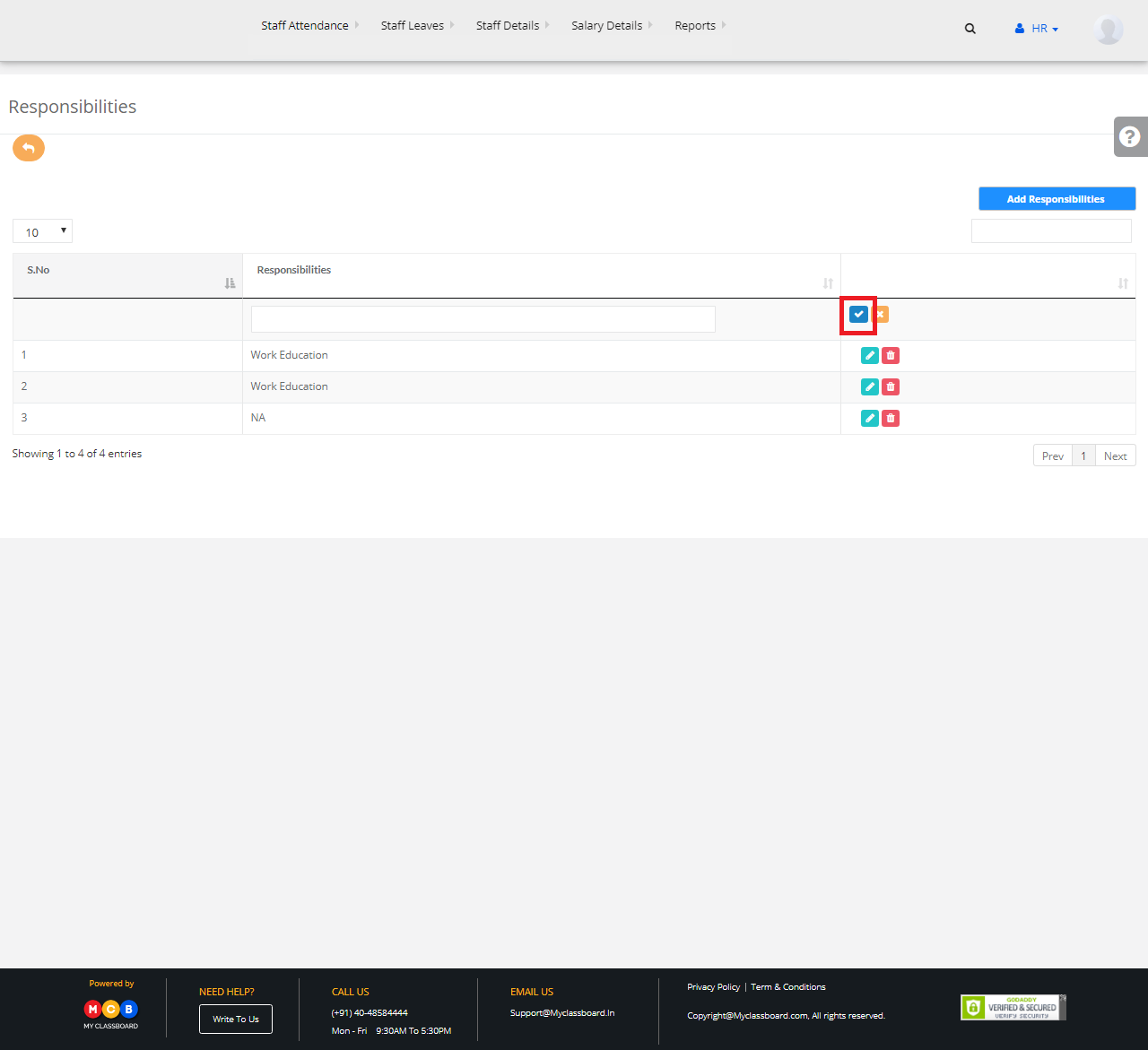
Step 1: Login to MCB with SysAdmin Login credentials.
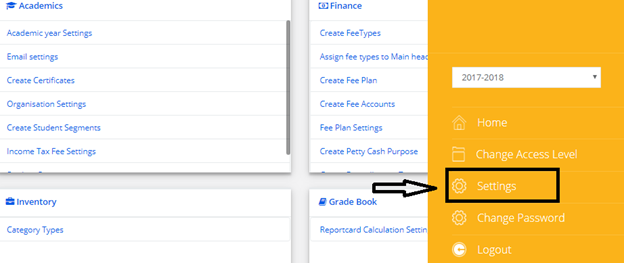
Step 2: Click on Settings.
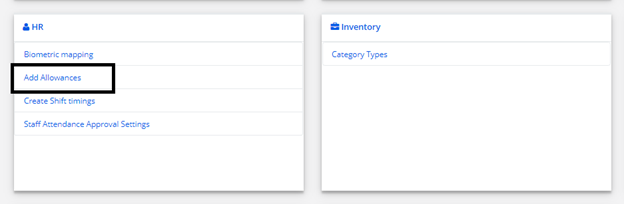
Step 3: Click on Add Allowances in HR Menu
Step 4: Select Branch Name and Click on Get.
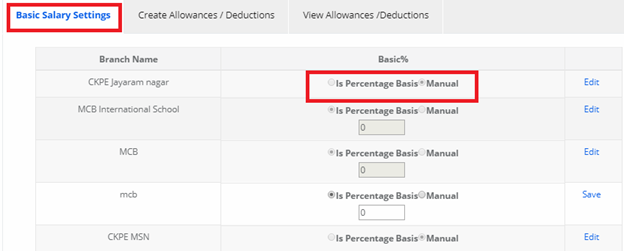
Step 5: Click on Basic Salary settings and provide Basic Type depends on Organisation( Manual or Percentage )
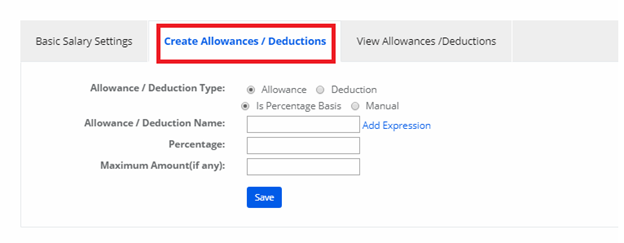
Step 6: Click on “Create Allowances / Deductions “ and provide the details(like HRA, DA, PF, ESI,etc..) based on criteria.
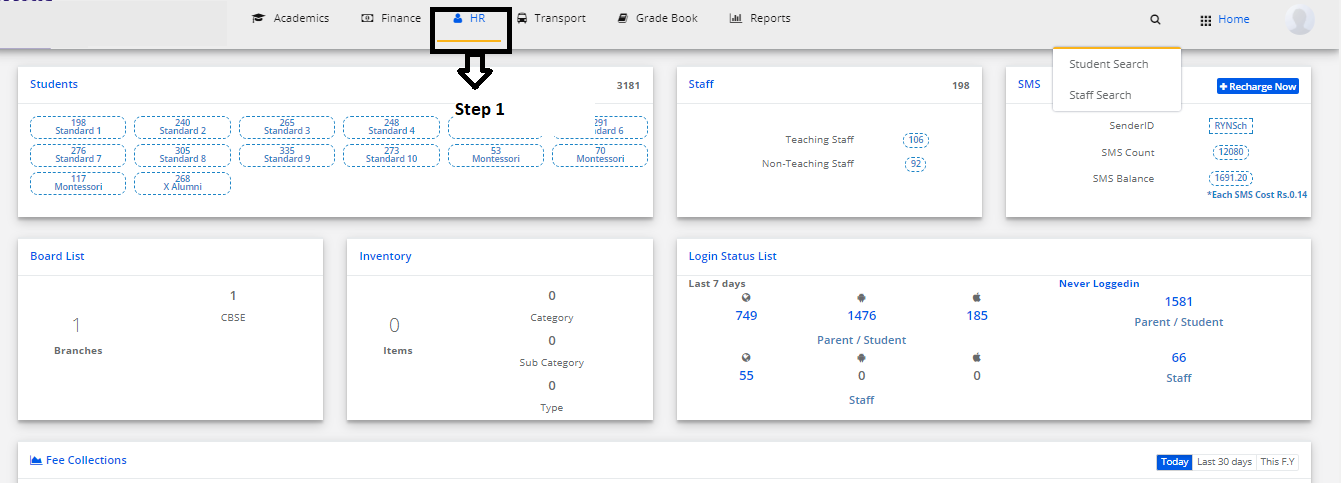
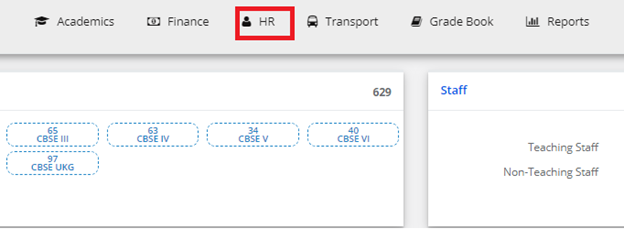
Step 7: Now go to “HR” on the top bar of the dashboard. You will be directed to the HR page.
Step 8: In “Payroll” click on “ Staff salary details”
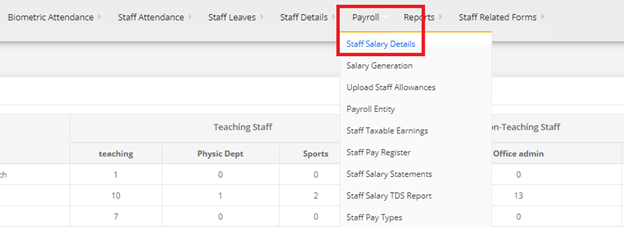
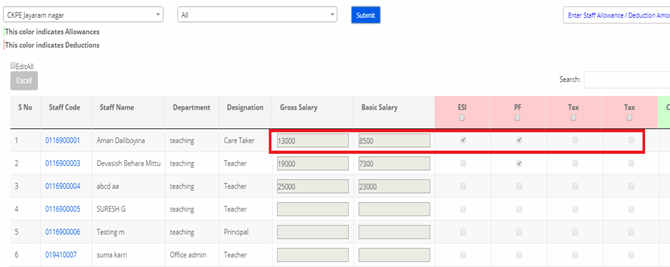
Step 9: Select Branch Name and click on Submit.
Step 10: After getting Staff details, provide Gross salary, Basic salary, Allowances/Deductions ((like HRA, DA, PF, ESI, etc.)
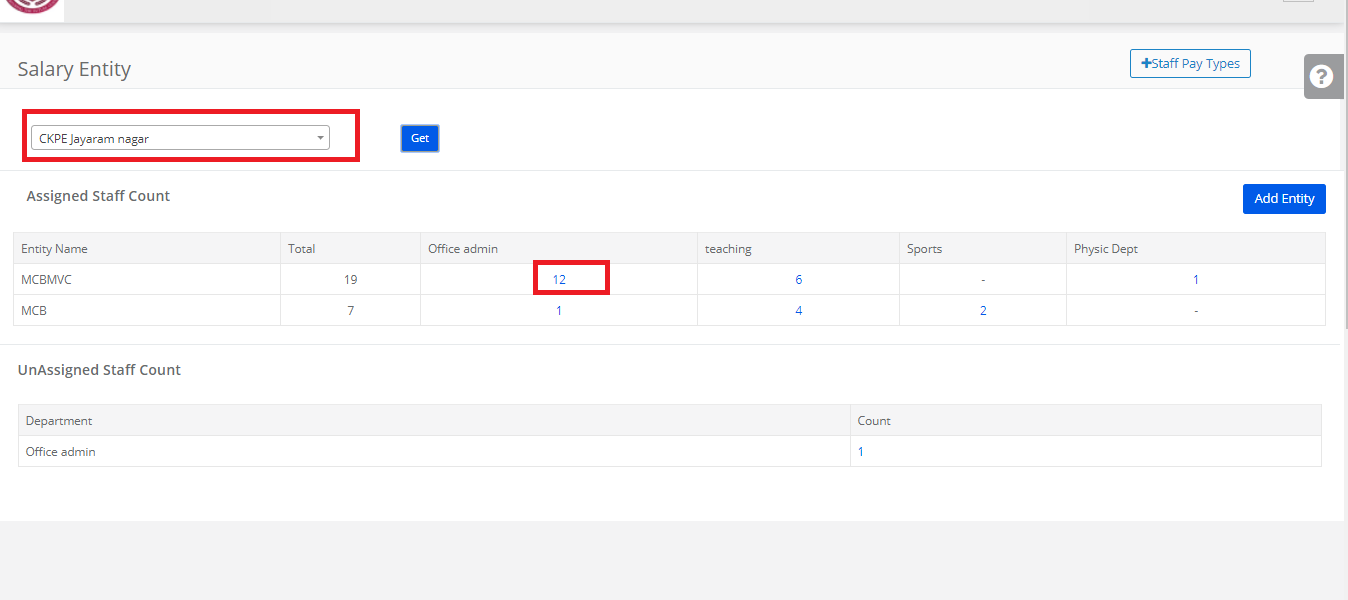
Step 11: Select Branch click get and click on the count.
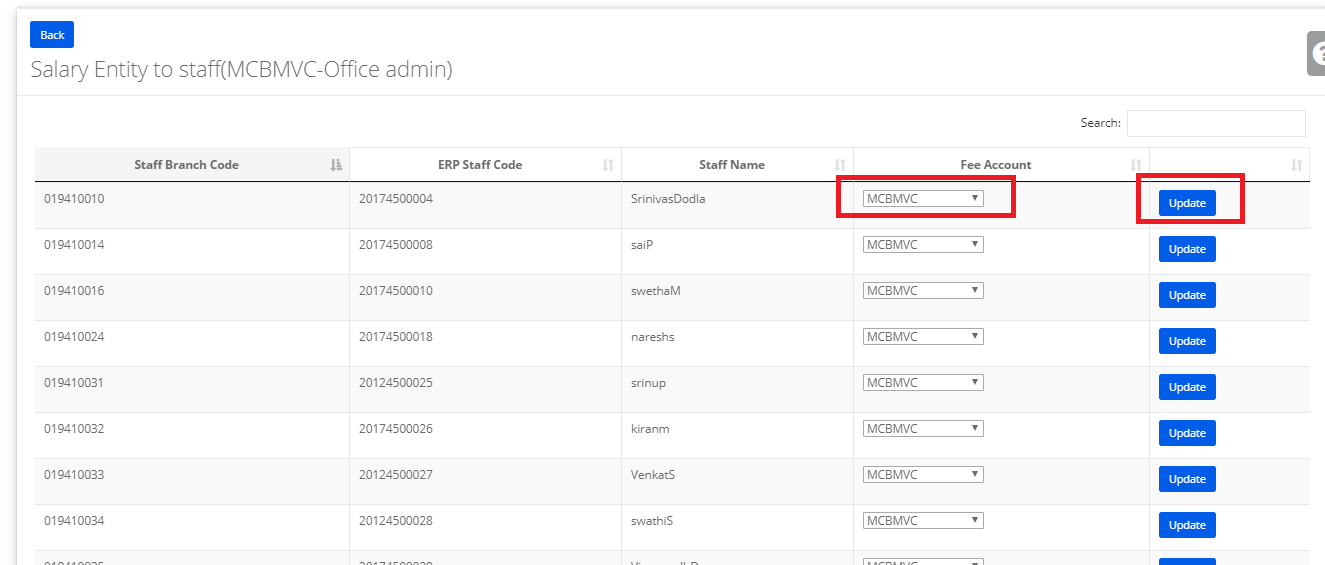
Step 12: Update the ENTITY/ACCOUNTs.
Step 13: Select branch, click get, click the month and click start
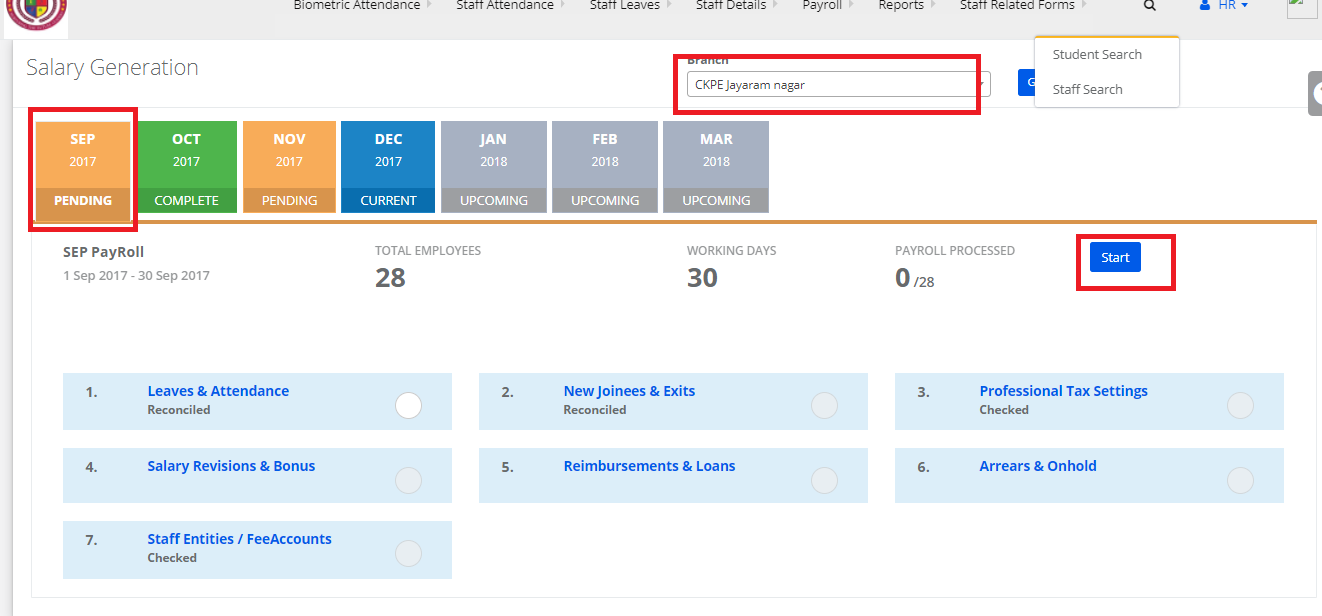
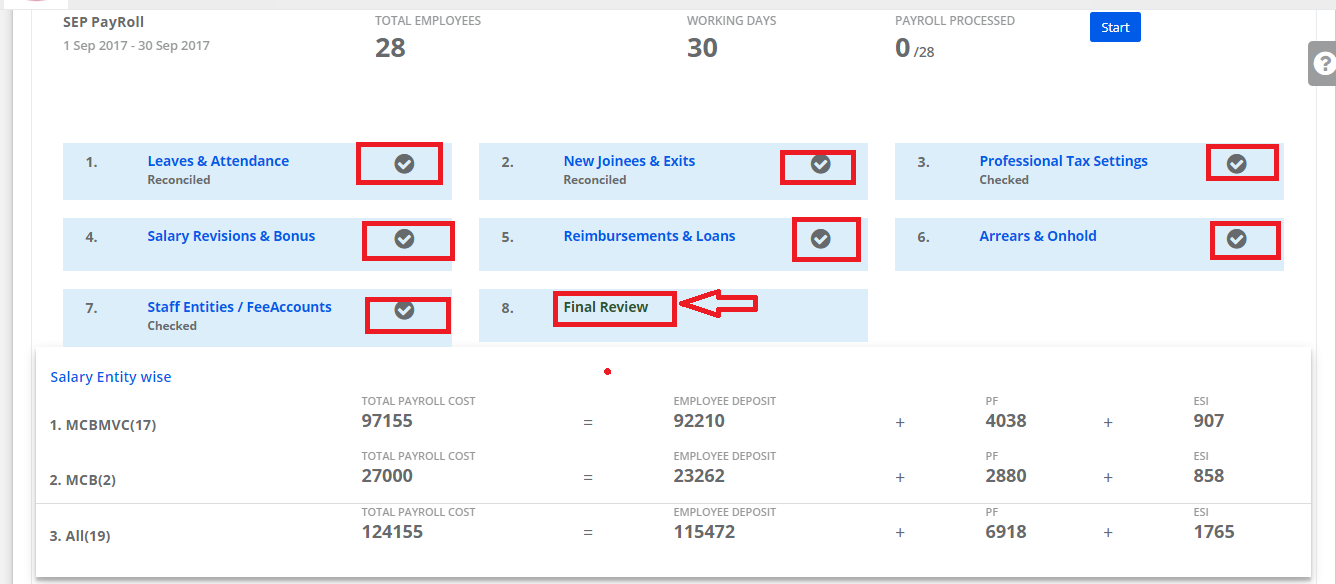
Step 14: Select all the check boxes and click final review.
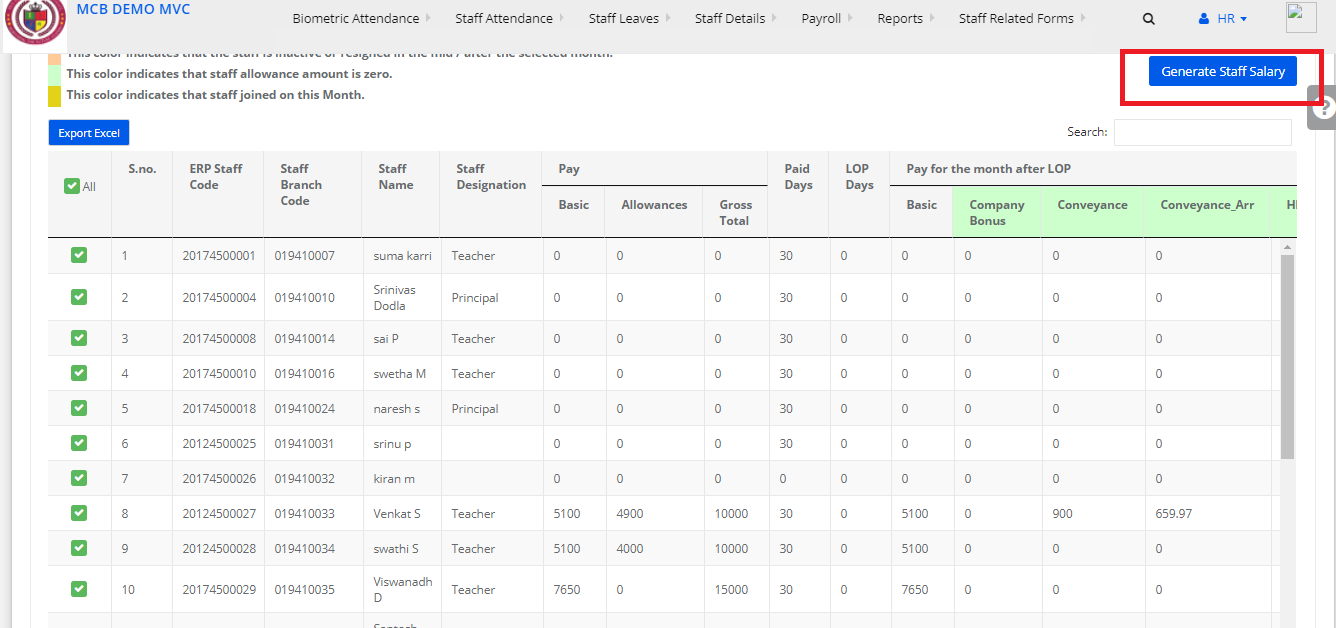
Step 15: Check the Salaries and click Generate staff salary.
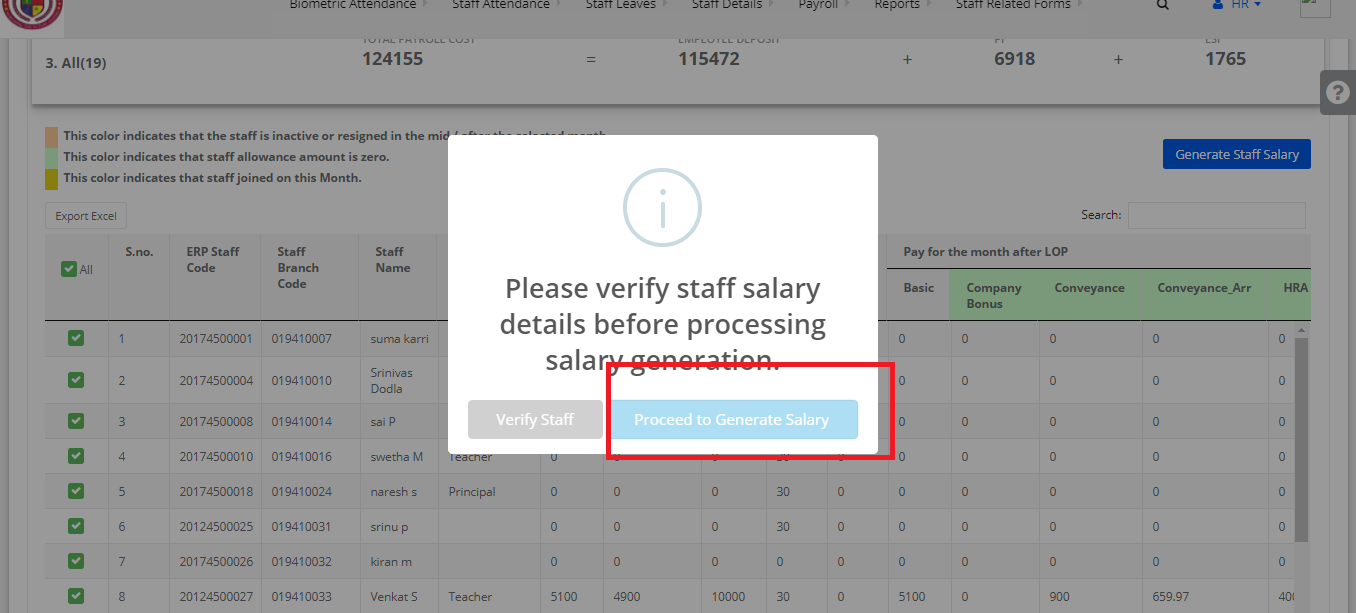
Step 16: Click Proceed to generate salary
Step 17: Click Conform
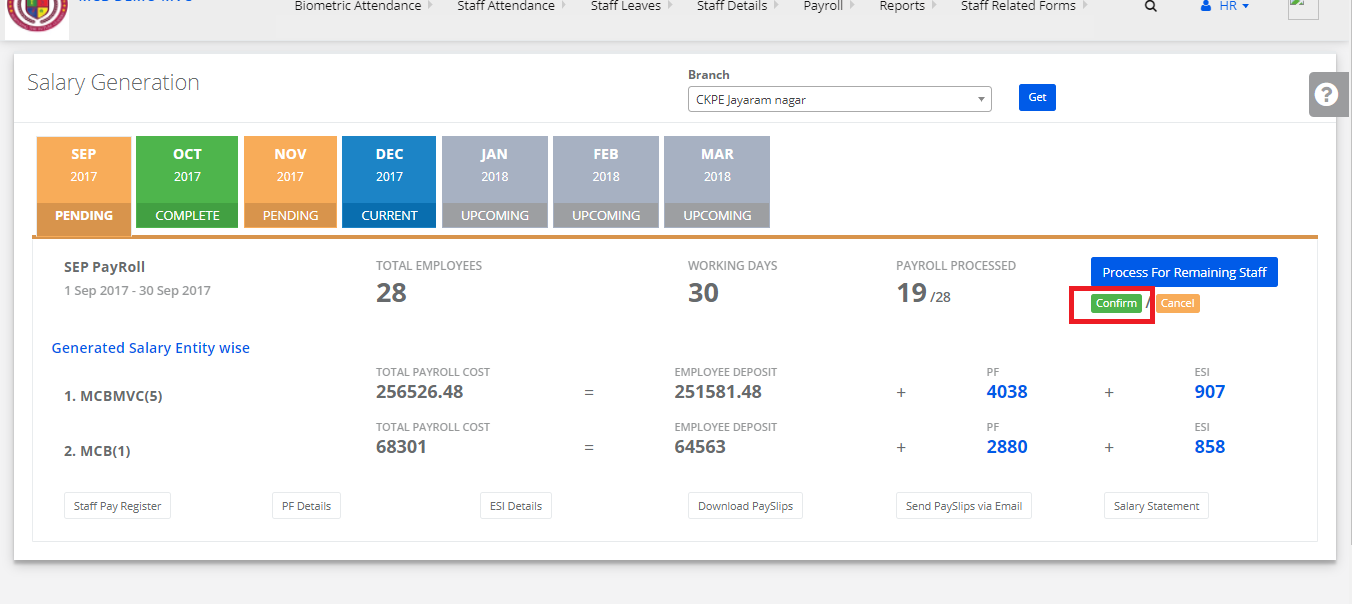
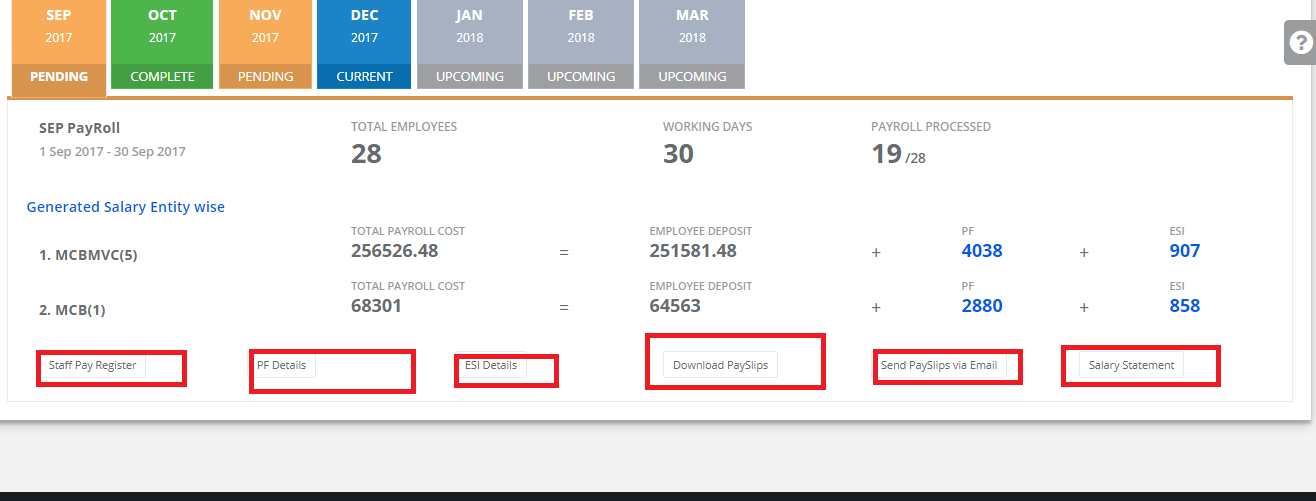
Step 18: Click Staff pay register/PF details/ESI/ Download Pay slips/Send Payslips via Email / Salary Statement